

The Ultimate Guide to Cross-Domain Tracking in Google Analytics 4
If you’ve worked with cross-domain tracking in Universal Analytics, you’re likely familiar with the complex configuration—often done either in the code (like in gtag.js) or through Google Tag Manager (using Google Analytics tags). This left many marketers and web analysts confused about where to start. Thankfully, in Google Analytics 4, the process is much simpler. In this guide, I’ll walk you through how to configure cross-domain tracking in Google Analytics 4. We’ll begin by discussing the challenges it addresses, followed by a step-by-step guide to the setup.
Video Tutorial:
The Problem of Cross-Domain Tracking in Google Analytics
By default, Google Analytics uses first-party cookies to track users. When someone visits your site, Google Analytics places a _ga cookie in their browser, which includes a unique identifier. As the user navigates from one page (page X) to another (page Y) on the same domain, Google Analytics recognizes this movement and groups both page views under the same session and user.
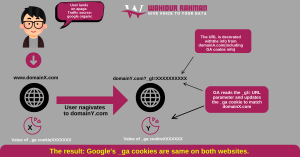
This setup works well on a single domain. However, issues arise when visitors move between different domains. First-party cookies like those used by Google Analytics cannot be shared across multiple domains. So, if a user starts on domainX.com and continues to domainY.com, Google Analytics on domainY.com won’t know it’s the same user, creating new cookies.
The result is inflated user counts in your reports. Every visitor moving between domains will be counted twice, new sessions will start each time, and domainX.com may appear as a referral source for domainY.com, causing “self-referrals” that distort your data.

What is Cross-Domain Tracking in Google Analytics 4?
Cross-domain tracking allows webmasters, marketers, and analysts to carry a visitor’s identifiers from one domain to another, preserving session information. This ensures that the visitor is tracked as the same user across multiple websites or domains. Both websites must be connected to the same GA4 data stream (same measurement ID).
How Does Cross-Domain Tracking Work in Google Analytics 4?
When a user navigates from domainX.com to domainY.com, GA4 adds a special parameter to the URL on domainY.com. This parameter helps GA4 recognize the user and track them as a single session across both domains.
Will Google Analytics Track Subdomains?
Yes, and you do not need cross-domain tracking for subdomains. For example, blog.yourwebsite.com and www.yourwebsite.com are tracked automatically by GA4.
How to Set Up Cross-Domain Tracking in Google Analytics 4
Before starting, ensure both websites use the same GA4 property (same measurement ID). The tracking code can be installed directly via gtag.js or Google Tag Manager.
Step 1: Go to the Admin panel, navigate to Data Streams, and select your web data stream.
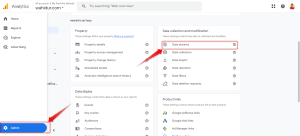
Step 2: Go to Configure Tag Settings.
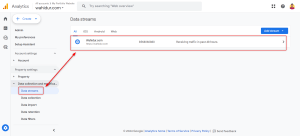
Step 3: Go to Configure Tag Settings.
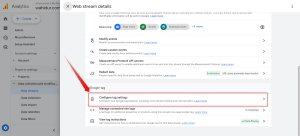
Step 4: Click Configure your domains.
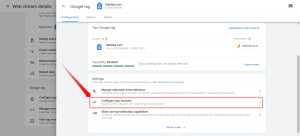
Step 5: Enter all domains that need cross-domain tracking and click Save.
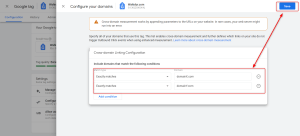
GA4 automatically handles the referral exclusion list. If domains still appear as referrals, adjust your settings manually. Note: Any domains entered here will no longer be counted as outbound clicks in Enhanced Measurement.
Test the Setup
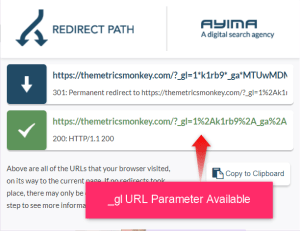
Visit your first website (domainX.com) and click a link to domainY.com. Check the URL on domainY.com—it should contain the _gl= parameter.

You can also use the GA Debugger extension and open the DebugView in GA4 to confirm multiple page_view events across domains.
Watch Out for Redirects
If the _gl parameter is missing, a JavaScript redirect might be the cause. Use the Redirect Path extension to troubleshoot. Consult developers if necessary.
Frequently Asked Questions About Cross-Domain Tracking
- What is cross-domain tracking in GA4? It enables tracking a user’s journey across multiple domains as a single session.
- Do I need cross-domain tracking for subdomains? No, GA4 handles subdomains automatically.
- Requirements: Both domains must use the same GA4 property. Tracking code can be via gtag.js or Google Tag Manager.
- What if I don’t set up cross-domain tracking? Users moving between domains will be counted as separate users, causing self-referral issues.
- How does it work? GA4 adds a
_glparameter to the URL to maintain session continuity. - How to test? Visit domainX.com, click a link to domainY.com, check for the
_glparameter, and use GA Debugger. - Parameter missing? Could be a redirect issue—use Redirect Path to troubleshoot.
- Effect on outbound click tracking? Domains in cross-domain tracking won’t count as outbound clicks.
- Adjust referral exclusion list? GA4 manages this automatically; manual adjustments optional.
Google Analytics 4 Cross-Domain Tracking: Final Thoughts
Cross-domain tracking in GA4 is straightforward to implement but has limitations. It works when users move via link clicks, but not for button clicks (<button>) or form submissions. Workarounds exist but may break if GA4 updates how it handles tracking.
Ready to Optimize Your Analytics Setup?
Now that you’ve learned how to configure cross-domain tracking in GA4, ensure your website data is accurate and actionable. For expert help or advanced setups, Book A Schedule today for personalized guidance.
Subscribe to Our Newsletter
Get the Latest Updates